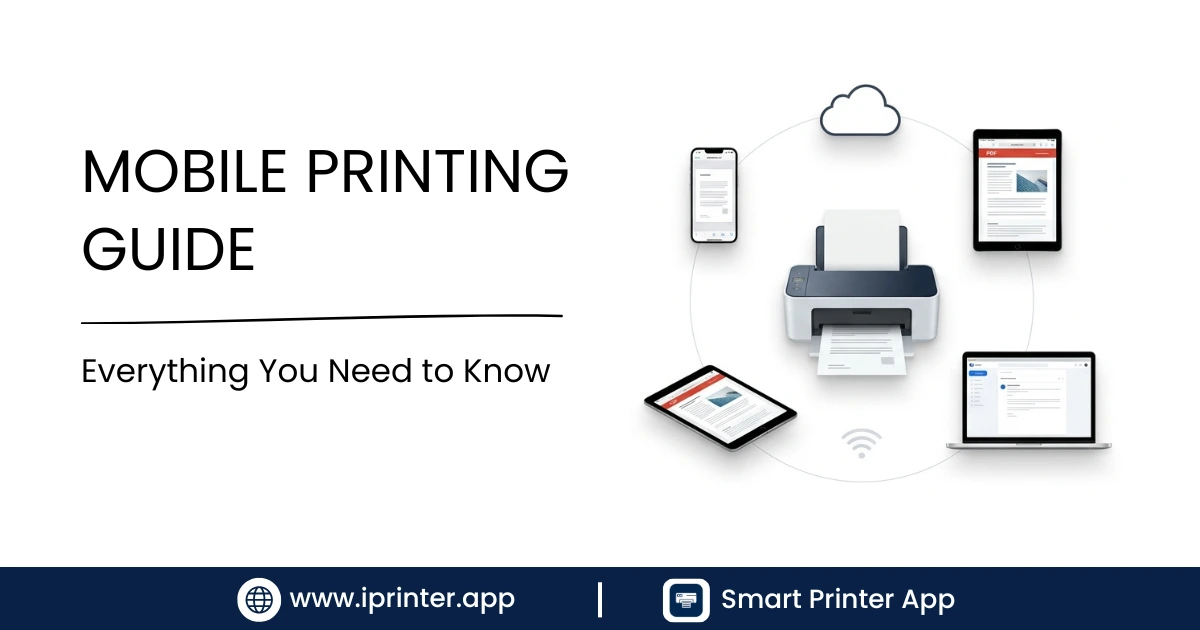
Introduction
Mobile printing has come a long way. What once required a computer, a USB cable, and a driver CD is now possible in a few taps on your smartphone. Whether you're printing a travel boarding pass, a work contract, a recipe, or a school assignment, your phone is all you need.
This comprehensive guide covers every mobile printing method available — WiFi, Bluetooth, USB, cloud, and network printing — for both iPhone and Android users at every experience level.
What Is Mobile Printing?
Mobile printing is the ability to send print jobs directly from a smartphone or tablet to a printer — without going through a computer. It covers everything from documents, PDFs, and spreadsheets to photos, emails, and web pages.
According to IDC Research, mobile and cloud-driven printing now account for a significant share of all office print volume globally, a trend driven by hybrid work and the shift away from desktop-centric workflows.
📄 Documents
Word, PDF, Excel, PowerPoint, Google Docs
🖼️ Photos
JPG, PNG, HEIC images from camera roll
📧 Emails
Gmail, Outlook, Apple Mail and attachments
🌐 Web Pages
Safari, Chrome, Firefox browser content
How Mobile Printing Works
Your phone communicates with a printer through a shared protocol — a set of rules that lets both devices understand each other. The most common protocols are:
- AirPrint — Apple's proprietary wireless printing protocol for iPhone and iPad
- Mopria Print Service — Android's standard print protocol, supported by most modern printers
- IPP (Internet Printing Protocol) — the open standard both AirPrint and Mopria use under the hood
- Manufacturer Apps — HP Smart, Canon PRINT, Epson iPrint, and others
- Third-Party Apps — like iPrinter, which bridge gaps when built-in protocols don't work
WiFi Printing Most Common
WiFi printing is the most popular mobile printing method because it's wireless and works over a distance. Your phone and printer both connect to the same WiFi network, and print jobs are sent over that connection.
How to Set Up WiFi Printing
- Connect your printer to your WiFi router (usually via the printer's touchscreen or WPS button).
- Ensure your phone is connected to the same WiFi network.
- Open your document or photo and use the share menu to print.
- Your printer should appear automatically if it supports AirPrint (iPhone) or Mopria (Android).
💡 Common Issue: If your printer doesn't appear, check whether you're on a guest network — these typically block device discovery. Switch to your main network, or use iPrinter to connect directly by IP address.
For a step-by-step walkthrough of WiFi printing, see our full guide on how to print from your phone, which covers WiFi in detail.
Bluetooth Printing
Bluetooth printing is ideal when WiFi isn't available — on the go, at a client's office, or at home when your router is acting up. Range is typically up to 10 meters (33 feet).
How to Print via Bluetooth
- Put your printer in Bluetooth pairing mode (check your printer manual).
- On your phone, go to Settings › Bluetooth and pair with the printer.
- Open iPrinter, select your document, and choose the Bluetooth-connected printer.
- Print.
Note: Native iOS and Android print dialogs often don't support Bluetooth printing. You'll need a third-party app like iPrinter for this to work reliably.
| Method | Best For | Range | Needs App? |
|---|---|---|---|
| WiFi | Home/office everyday printing | Full network | Optional |
| Bluetooth | On-the-go, no WiFi | ~10m | Yes (iPrinter) |
| USB | Wired, secure printing | Direct | Yes (iPrinter) |
| Cloud | Remote, anywhere printing | Worldwide | Yes |
USB Printing
USB printing is the most reliable connection method because it doesn't depend on network stability. It's useful in environments with poor WiFi, or when printing confidential documents where wireless transmission is a concern.
iPhone — USB Printing
You'll need a Lightning to USB-A adapter (older iPhones) or a USB-C to USB-A adapter (iPhone 15 and later). Connect the adapter to your phone and plug in the USB cable from your printer. Then use iPrinter to detect and print.
Android — USB OTG Printing
Most Android phones support USB OTG (On-The-Go). You'll need a USB OTG adapter (USB-C to USB-A or Micro-USB to USB-A depending on your phone). Plug the adapter into your phone, connect the printer cable, then open iPrinter to print.
Cloud & Network Printing
Cloud printing allows you to send a print job to a printer anywhere in the world — as long as that printer is connected to the internet. This is useful for:
- Sending documents to a printer at home while you're at the office
- Printing to a shared office printer over a corporate network
- Using print kiosk services at FedEx, Staples, or UPS
Many modern printers from HP (HP ePrint), Epson (Epson Connect), and Canon (Canon Cloud Link) support cloud printing natively. iPrinter also supports LAN network printers, making it easy to connect to any printer on the same network by IP address.
AirPrint Explained: What It Is & Its Limitations
AirPrint is Apple's built-in wireless printing protocol, available on all iPhones running iOS 4.2 and later. When you tap Print in any iOS app, it automatically discovers AirPrint printers on your network — no setup required.
✅ AirPrint Pros
- Zero configuration — just connect to WiFi
- Supported by most printers made after 2013
- Built into every iOS app's share sheet
❌ AirPrint Limitations
- Only works with AirPrint-certified printers
- Doesn't support Bluetooth or USB connections
- Limited print settings compared to dedicated apps
- Older printers are completely excluded
For printers that don't support AirPrint, iPrinter acts as a universal bridge — working with thousands of printer models over any connection type.
What Can You Print From a Phone?
Modern printing apps and mobile OS capabilities support a wide range of content types:
- Documents: Word, PDF, Excel, PowerPoint, Google Docs
- PDFs: Any PDF from your files or email
- Photos: JPG, PNG, HEIC images from your camera roll
- Emails: Gmail, Outlook, Apple Mail, plus attachments
- Web Pages: Any page open in Safari, Chrome, or Firefox
- Contacts & Calendar events
- Notes and text files
Choosing the Right Printing Method for You
Not sure which method fits your situation? Here's a quick decision guide:
- Printing at home every day? → WiFi printing is easiest. If your printer is AirPrint-compatible, use the built-in Share › Print. Otherwise, use iPrinter.
- Printing while traveling or away from WiFi? → Bluetooth printing with iPrinter.
- Printing confidential documents or in a signal-dead area? → USB printing with an OTG adapter and iPrinter.
- Printing to an office network printer? → Network/LAN printing via iPrinter or your IT team's setup.
- Want to print from your phone without a computer? → See our guide on printing from phone without a computer.
Best App for Mobile Printing
While each printer brand has its own app (HP Smart, Canon PRINT, Epson iPrint), these only work with that brand's printers. If you own a different brand or switch printers, you're stuck.
iPrinter is designed to be truly universal:
- Works with thousands of printer models from all major brands
- Supports WiFi, Bluetooth, USB, and LAN network connections
- Prints documents, PDFs, photos, emails, and web pages
- Available for both iPhone (iOS 14+) and Android (8.0+)
- Clean, simple interface — no technical knowledge needed
Conclusion
Mobile printing is flexible, fast, and fully capable of replacing traditional computer-based printing workflows. Whether you need WiFi, Bluetooth, USB, or cloud connectivity, the right setup makes it seamless.
Frequently Asked Questions
Frequently Asked Questions
Yes. Older printers that don't support AirPrint or Mopria can still be used via USB printing (with an OTG adapter) or by connectingiPrinter to the printer's IP address over a local network.
No. Bluetooth printing and USB printing both work without WiFi. You only need WiFi if you're using a wireless or network printer.
WiFi printing on a private network is generally secure. For sensitive documents, use USB printing for a fully wired, non-broadcast connection. Avoid printing on public WiFi networks.
Yes, if your phone is connected to the office WiFi and the printer is on the same network. Corporate firewalls sometimes block printer discovery, so you may need your IT team to whitelist the printer's IP address, or use iPrinter's manual IP entry feature.
Start Printing Smarter
Stop switching between apps. iPrinter handles every file type, every printer, and every connection method — all in one place.