Introduction
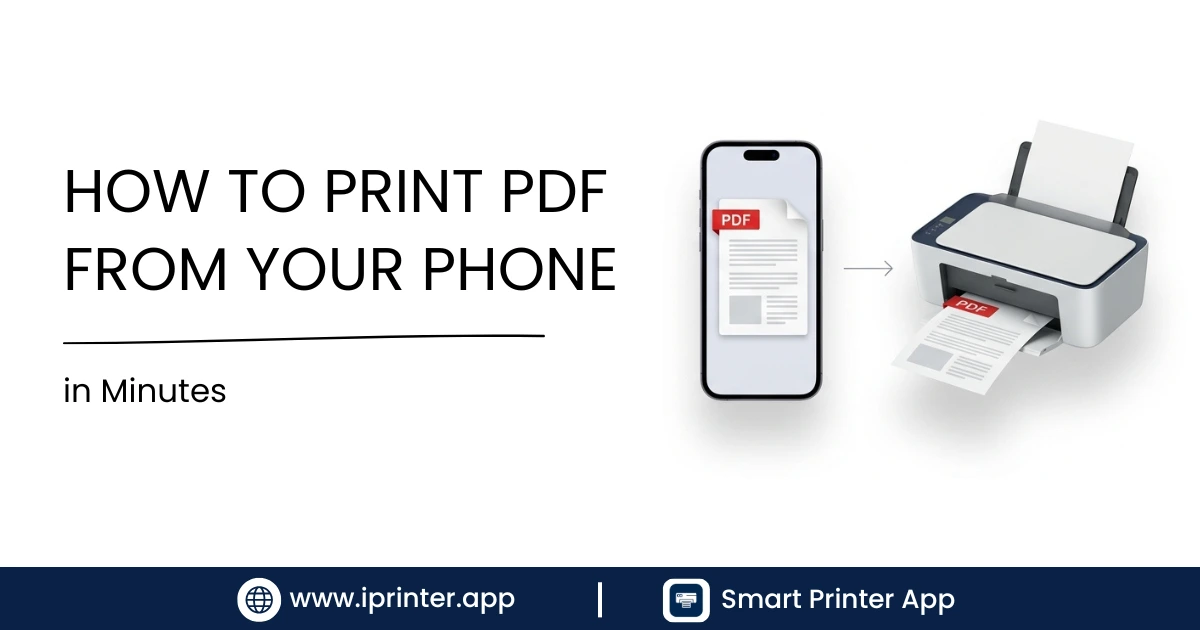
Printing a PDF from your iPhone or Android phone is faster than sending it to a computer first. This guide covers every method — AirPrint, WiFi, Bluetooth, USB — with step-by-step instructions for both platforms and a fix for the most common PDF printing problems.
Why Print PDFs Directly From Your Phone?
PDFs are the most common document format for contracts, invoices, boarding passes, receipts, forms, and reports. Transferring a PDF to a computer just to print it takes unnecessary time — especially when your phone already has the file.
Modern printing apps let you print PDFs from your phone in under a minute, even without a computer nearby. Whether you're printing boarding passes at the airport, contracts at a client meeting, or school forms at home, printing directly from your phone is faster and more convenient.
| Scenario | Old Way | With Phone Printing |
|---|---|---|
| Print a contract PDF | Email to computer → open → print | Open in app → print directly |
| Print a boarding pass | Download → transfer → print | Print from email or wallet |
| Print a form | Download → find USB → print | Tap share → print |
iPhone PDF Printing
iPhone supports PDF printing through both AirPrint and third-party apps. For a complete guide to iPhone printing across all file types, see our dedicated page on how to print from iPhone to any printer.
Method 1: Using AirPrint (Built-in)
AirPrint is Apple's native printing technology. It works with hundreds of modern WiFi printers from HP, Canon, Epson, Brother, and others without any app installation.
- Open the PDF on your iPhone: Open the PDF in Files, Mail, Safari, or any app that supports sharing. PDFs downloaded from the web open directly in Safari's PDF viewer.
- Tap the Share button: In Safari, tap the Share icon (box with an arrow) at the bottom of the screen. In Files or Mail, tap Share or the action menu.
- Tap Print: Scroll the share sheet and tap Print. The AirPrint dialog will open.
- Select printer and tap Print: Tap Select Printer, choose your AirPrint printer, set copies and page range if needed, then tap Print in the top-right corner.
💡 Tip: If your iPhone and printer are on the same WiFi network, AirPrint detects the printer automatically. No setup required.
Method 2: Using iPrinter (for non-AirPrint printers)
Most older printers and many office network printers don't support AirPrint. iPrinter fills that gap by supporting WiFi, Bluetooth, USB, and network printers — including models that AirPrint doesn't recognise.
- Install iPrinter from the App Store
- Open your PDF in any app (Files, Mail, Safari)
- Tap Share → select iPrinter
- Choose your printer from the iPrinter list
- Configure page settings and tap Print
Android PDF Printing
Android supports PDF printing natively through the Print Framework introduced in Android 4.4. Here's how to use it.
Method 1: Native Android Print
- Open the PDF: Open the PDF in Google Drive, Chrome, or any PDF viewer on your Android device.
- Tap menu → Print: In Google Drive, tap the three-dot menu and select Print. In Chrome, tap menu → Share → Print.
- Select your printer and print: Choose your WiFi printer from the dropdown, set pages and layout, then tap the print button.
Method 2: Using iPrinter for Android
For printers not detected by Android's native print service, or for Bluetooth and USB printing, iPrinter provides the broadest compatibility. For a complete Android printing walkthrough across all connection types, see our guide on how to print from Android phone.
📱 iPhone PDF Printing
- AirPrint for WiFi printers
- iPrinter for non-AirPrint
- Works from Files, Mail, Safari
- Bluetooth + USB via iPrinter
🤖 Android PDF Printing
- Native Print Framework
- Google Drive print option
- iPrinter for extended support
- Bluetooth + USB via iPrinter
Common PDF Printing Issues & Fixes
PDF Prints Blank Pages
The most common cause is a PDF rendering failure where the printer receives the file but can't interpret its content. This often happens with PDFs that contain complex vector graphics, embedded fonts, or security restrictions.
Fix: Open the PDF in Adobe Acrobat or iPrinter, which render PDFs independently before sending them to the printer. This bypasses the printer's internal PDF engine and prevents blank-page issues.
PDF Prints at Wrong Size or Crops Content
This usually happens when the PDF is formatted for a different paper size (e.g., US Letter vs A4).
Fix: In the Print dialog, select "Fit to Page" or match the paper size to the PDF's original dimensions. In iPrinter, you can set custom paper sizes for precise control.
Multi-Page PDF Only Prints First Page
Some apps send only the visible page when you tap Print.
Fix: Check the page range in the Print dialog and change it from "1" to "All". If only the first page is sent regardless, switch to iPrinter, which always sends the complete document.
PDF Takes Too Long to Print
Large PDFs with high-resolution images can take time to process. Reduce the print quality setting or use a PDF compressor app to reduce file size before printing.
Printer Says "Document Failed"
This is a communication error between the app and the printer.
Fix: Restart the printer, clear the print queue on your phone (Settings → Apps → Print Spooler → Clear Data on Android), and try again. If it persists, try a different printing app.
⚠️ Secured PDFs: PDFs with printing restrictions ("this document is password-protected") cannot be printed until the restriction is removed by the document owner. You'll see an error message if you try.
Best Apps for PDF Printing From Phone
Here's how the main options compare for PDF printing specifically:
| App | Platform | PDF Quality | Connection Types | Cost |
|---|---|---|---|---|
| iPrinter | iOS + Android | Excellent | WiFi, BT, USB, Network | Free / Pro |
| Adobe Acrobat | iOS + Android | Excellent | AirPrint / WiFi | Free / Subscription |
| Google Drive | Android | Good | WiFi | Free |
| HP Smart | iOS + Android | Good | WiFi (HP only) | Free |
| Files (Apple) | iOS only | Good | AirPrint | Free (built-in) |
For the broadest printer compatibility and most consistent results across complex PDFs, iPrinter is the top recommendation. You can also compare all options in our guide to the best mobile printing apps.
Conclusion
Printing PDFs directly from your smartphone is an incredibly efficient way to handle documents without needing to transfer files to a desktop computer. Whether you rely on AirPrint for iOS, the Native Print Framework for Android, or a universal solution like iPrinter, getting your files onto paper takes just a few simple taps.
Frequently Asked Questions
Yes. Both iPhone and Android let you print PDFs natively. On iPhone, use AirPrint or iPrinter. On Android, use the built-in Print function from Google Drive or Chrome, or use iPrinter for printers not detected automatically.
Install iPrinter, open your PDF, tap Share → iPrinter, select your printer (WiFi, Bluetooth, or USB), and tap Print. This works with thousands of printers that don't support AirPrint natively. See our full guide on printing from iPhone to any printer.
This is usually a rendering issue. Try opening the PDF in Adobe Acrobat or iPrinter, which handle complex PDFs more reliably than basic PDF viewers.
Yes, if your phone supports USB OTG. Connect a USB OTG adapter to your phone, plug in the printer cable, and use iPrinter to send the print job. Full instructions are in our guide on connecting a printer to your phone.
For WiFi printers detected by Android, use the native Print option in Google Drive or Chrome. For broader compatibility (Bluetooth, USB, older printers), iPrinter provides the most reliable results. See our complete guide on printing from Android phone.
Related Guides

Print PDFs Without the Hassle
Use iPrinter to print PDFs instantly from your iPhone or Android to almost any printer — no computer, no cables required.