Introduction
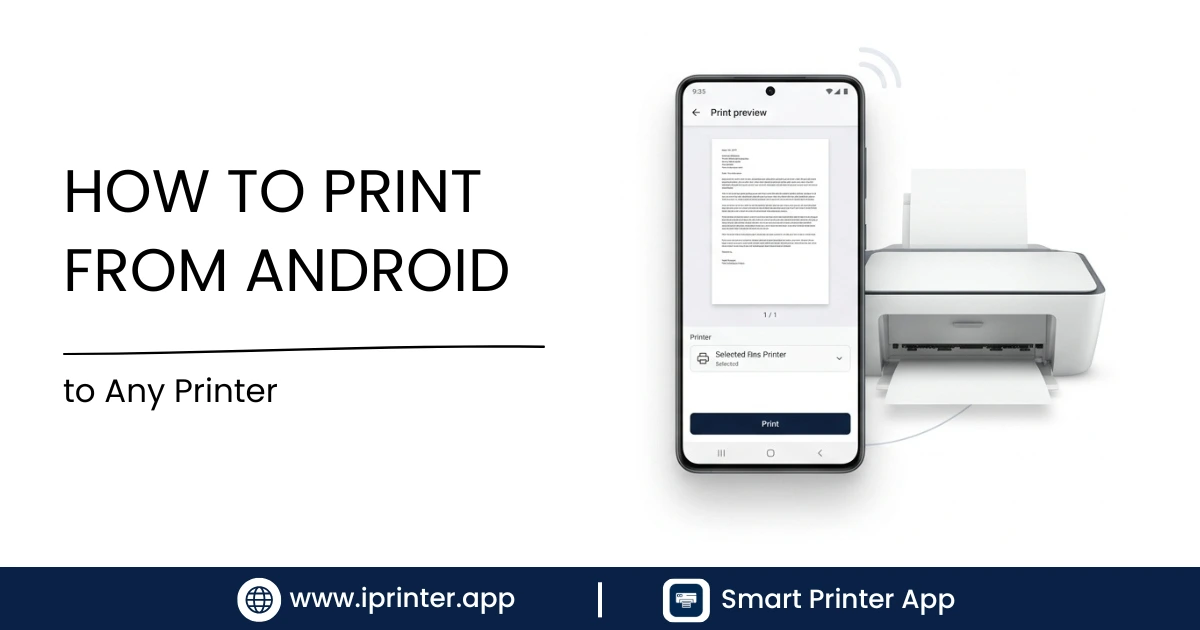
Need to print a document, photo, or PDF straight from your Android phone? This guide covers every method — WiFi, Bluetooth, USB, and network printing — with step-by-step instructions for any Android device running Android 8.0 and above.
Android Printing Overview
Android has supported native printing since Android 4.4 (KitKat) through the Android Print Framework. This built-in system lets you send print jobs directly from any app that supports the Print option — no computer needed.
However, native Android printing has limits. It works best with modern WiFi printers that advertise themselves on the local network. Older printers, USB-only printers, and Bluetooth printers often require a dedicated mobile printing app to connect properly.
Here's a quick comparison of your options:
| Method | Range | Speed | Printer Support | App Required? |
|---|---|---|---|---|
| WiFi (same network) | Up to ~30m | Fast | Modern WiFi printers | Sometimes |
| Bluetooth | Up to ~10m | Moderate | Bluetooth-enabled printers | Usually yes |
| USB OTG | Direct cable | Fast | Any USB printer | Yes |
| Network/IP Printing | Any network | Fast | Network-connected printers | Yes |
| Cloud Printing | Anywhere | Variable | Cloud-enabled printers | Yes |
If you want a single app that handles all of these connection types, iPrinter supports thousands of printer models over WiFi, Bluetooth, USB, and network connections — making it the most flexible solution for Android users.
Supported Printer Types
Before jumping into setup steps, it helps to know which category your printer falls into. Android printing behaves differently depending on the printer's connection capabilities.
WiFi / Wireless Printers
Most modern printers from HP, Canon, Epson, Brother, and Samsung include built-in WiFi. These are the easiest to use with Android because both devices share the same network, allowing automatic discovery. Popular models include the HP OfficeJet series, Canon PIXMA series, and Epson EcoTank line.
Bluetooth Printers
Thermal receipt printers, label printers, and some compact photo printers use Bluetooth instead of WiFi. These are common in retail, restaurants, and field services. Android's Bluetooth stack supports printing to these devices when paired with the right app.
USB Printers
Older laser and inkjet printers often only have USB ports. You can connect these to Android using a USB OTG (On-The-Go) cable — a small adapter that connects a standard USB cable to your phone's USB-C or Micro-USB port. Not all Android phones support USB OTG, so check your device specs first.
Network / IP Printers
Office printers connected to a local area network via ethernet can be accessed from Android using their IP address. This method is especially useful in corporate environments where IT manages printer assignments centrally.
💡 Pro Tip: Not sure which connection type your printer supports? Check the label on the back of the printer or look up the model number on the manufacturer's website. Most modern printers list WiFi, Bluetooth, and USB compatibility in the specs sheet.
WiFi Printing Setup
WiFi printing is the most common and convenient method for Android. Here's how to set it up from scratch.
Step 1: Connect Your Printer to WiFi
Make sure your printer is connected to the same WiFi network as your Android phone. Most modern printers have a touchscreen menu where you can select a WiFi network and enter the password. If your printer has a WPS button, you can also press that along with the WPS button on your router for automatic connection.
- Connect your Android phone and printer to the same WiFi network: Go to Settings → WiFi on your Android phone and confirm you're connected to your home or office network. Connect your printer to the same network via its control panel or using the WPS button.
- Open the file you want to print: Open a PDF in Google Drive, a photo in your Gallery, or a document in Google Docs. Most apps on Android include a Print option.
- Tap the Share or menu icon → Print: In most Android apps, tapping the three-dot menu (⋮) or Share icon reveals a Print option. Tap it to open the Android Print dialog.
- Select your printer: The Print dialog will scan for printers on your network. Select your printer from the dropdown, choose your settings (copies, paper size, colour/black-and-white), and tap the Print button.
What If My Printer Doesn't Appear?
If Android can't detect your printer automatically, it's likely because your printer doesn't broadcast its presence using the mDNS protocol that Android relies on. This is common with older WiFi printers. The fix is to install a printer-specific plugin or a universal app like iPrinter, which can locate printers by IP address rather than relying on automatic discovery. You can find your printer's IP address in the printer's network settings menu or by printing a network configuration page.
Bluetooth Printing Setup
Bluetooth printing is ideal when you're away from a WiFi network or when printing to a portable label or receipt printer. The process is slightly different from WiFi printing because Android doesn't natively discover Bluetooth printers through the standard Print dialog.
- Pair your printer via Bluetooth: Go to Settings → Connected Devices → Pair new device on your Android phone. Make sure your printer is in pairing mode (usually a button on the printer), then select it from the list of available devices.
- Install a Bluetooth-compatible printing app: Android's native Print dialog doesn't support Bluetooth printers. You need a dedicated app like iPrinter that includes Bluetooth printer support.
- Open iPrinter and select your paired printer: Inside the app, choose Bluetooth as the connection type and select the printer you just paired. The app will establish the connection and let you print documents, labels, or receipts directly.
⚠️ Note: Bluetooth printing typically has a range of about 10 metres. Keep your phone within range of the printer during the print job to avoid disconnections.
USB Printing
USB printing lets you connect an Android phone directly to a printer using a USB OTG cable. This works even without WiFi or Bluetooth, making it a reliable fallback option.
What You Need
- An Android phone that supports USB OTG (check your phone's spec sheet)
- A USB OTG adapter (USB-C to USB-A, or Micro-USB to USB-A)
- A standard USB printer cable
- A printing app that supports USB printing (such as iPrinter)
- Connect the USB OTG cable to your phone: Plug the OTG adapter into your phone's charging port, then connect the printer cable between the adapter and the printer's USB port.
- Open iPrinter and select USB as the connection type: The app will detect the connected printer automatically. If prompted, grant USB permission to the app.
- Print your file: Select the file you want to print, configure your settings, and tap Print. The job will send directly over the USB connection.
💡 Tip: If you're buying a USB OTG adapter, get one that includes a charging pass-through port. This lets you charge your phone while printing, which is handy for large print jobs.
Printing Documents, PDFs & Photos
Once your printer is connected, here's how to print the most common file types from an Android phone.
Printing PDF Files
PDF printing is one of the most common use cases for mobile printing. For a full walkthrough, see our dedicated guide on how to print PDF files from your phone. The short version:
- Open the PDF in Google Drive, Adobe Acrobat, or any PDF viewer
- Tap the menu → Print
- Select your printer and confirm settings
- Tap Print
If the PDF doesn't print correctly (missing pages, wrong orientation), try opening it in a dedicated PDF reader like Adobe Acrobat or using iPrinter, which handles complex PDFs more reliably.
Printing Word Documents and Office Files
For Word (.docx), Excel (.xlsx), and PowerPoint (.pptx) files, the easiest approach is to open the file in Google Docs, Sheets, or Slides and use the built-in print function. Alternatively, Microsoft Office for Android also includes a Print option under the Share menu. Our full guide on printing documents from your phone covers every file type in detail.
Printing Photos
Open your photo in the Android Gallery app, tap the Share icon, and select Print. You can adjust the paper size and photo layout before confirming. For better photo quality, choose the highest DPI setting available and use the correct paper size to avoid cropping.
Printing Emails
Gmail and Outlook for Android both support printing. In Gmail, open the email, tap the three-dot menu, and select Print. For Outlook, use the menu inside the email view. Our guide on printing emails from your phone includes steps for both apps.
Printing Web Pages
In Chrome for Android, tap the three-dot menu → Share → Print. In Samsung Internet, use the menu icon → Print. For detailed steps across different browsers, see our guide on printing web pages from your phone.
Troubleshooting Common Issues
Printer Not Showing Up on Android
This is the most common problem. Causes include:
- Printer and phone are on different WiFi networks (e.g., 2.4 GHz vs 5 GHz)
- Printer doesn't support mDNS (common on older models)
- Printer is offline or in sleep mode
Fix: Make sure both devices are on the same WiFi band. Wake the printer by pressing any button. If the printer still won't appear, try entering its IP address manually in iPrinter.
Print Job Stuck in Queue
Go to Settings → Apps → Print Spooler → Clear Data. This clears stuck jobs and resets the print queue without affecting your documents.
Printing Blank Pages
Usually caused by a driver mismatch or a corrupted print job. Try printing a different file to isolate whether it's the document or the printer connection. If it's always blank, check your printer's ink or toner levels.
Wrong Paper Size or Orientation
Set the correct paper size in the Print dialog before sending. If the setting reverts, the issue may be with the app rather than Android — try printing through iPrinter for more consistent layout control.
Android Says "No Printers Available"
This usually means Android's default print service can't find any compatible printers. Install a dedicated printer plugin or use a third-party app like iPrinter that extends compatibility to thousands of printer models. The broader guide on how to print from your phone has additional troubleshooting steps.
Best Apps for Android Printing
While Android's built-in printing works for basic tasks, a dedicated app expands what you can print and which printers you can reach. Here's how the main options compare:
| App | WiFi | Bluetooth | USB | Printer Models |
|---|---|---|---|---|
| iPrinter | ✅ | ✅ | ✅ | Thousands |
| HP Smart | ✅ | ❌ | ❌ | HP only |
| Epson iPrint | ✅ | ❌ | ❌ | Epson only |
| Canon PRINT | ✅ | ❌ | ❌ | Canon only |
| Android Native Print | ✅ | ❌ | ❌ | Limited |
Manufacturer apps like HP Smart, Epson iPrint, and Canon PRINT work well if you own that brand's hardware and only need WiFi printing. If you have a mixed fleet of printers, or need Bluetooth or USB support, a universal app like iPrinter is the better choice. For a full comparison of all major printing apps, see our guide on the best mobile printing apps for iPhone and Android.
Conclusion
Printing from an Android phone is quick and convenient, whether you're using a WiFi, Bluetooth, USB, or network printer. Android's built-in printing features handle most everyday printing needs, while dedicated printing apps can provide additional compatibility and advanced options for older or specialized printers. By following the setup and troubleshooting steps in this guide, you can easily print documents, PDFs, photos, emails, and web pages directly from your phone—saving time and eliminating the need for a computer. With the right setup, mobile printing becomes a seamless part of your daily workflow.
Frequently Asked Questions
Yes. Android includes a built-in Print Framework that lets you print from most apps. For printers that don't appear automatically, apps like iPrinter extend compatibility to WiFi, Bluetooth, USB, and network printers.
iPrinter is one of the most versatile options because it supports thousands of printer models across multiple connection types — WiFi, Bluetooth, USB, and network. Manufacturer apps like HP Smart work well but are limited to their own hardware.
Make sure your phone and printer are on the same WiFi network. Open the file you want to print, tap the menu, and select Print. Your printer should appear in the list. If it doesn't, install a compatible printing app or enter the printer's IP address manually.
Yes — using Bluetooth (for compatible printers) or a USB OTG cable (for any USB printer). Both methods work offline and don't require a WiFi network. Our complete guide on printing from your phone without a computer covers both options in detail.
Android's native support covers modern WiFi printers that use mDNS discovery. For older models, USB-only printers, or Bluetooth printers, you need a third-party app. iPrinter covers the widest range of printer models and connection types available on Android.
Open the PDF in any viewer, tap menu → Print, select your printer, and confirm. For a step-by-step breakdown with screenshots, see our dedicated guide on how to print PDFs from your phone.
Related Guides
Ready to Print From Your Android Phone?
Download iPrinter and connect to thousands of printer models over WiFi, Bluetooth, USB, or your network — no computer needed.