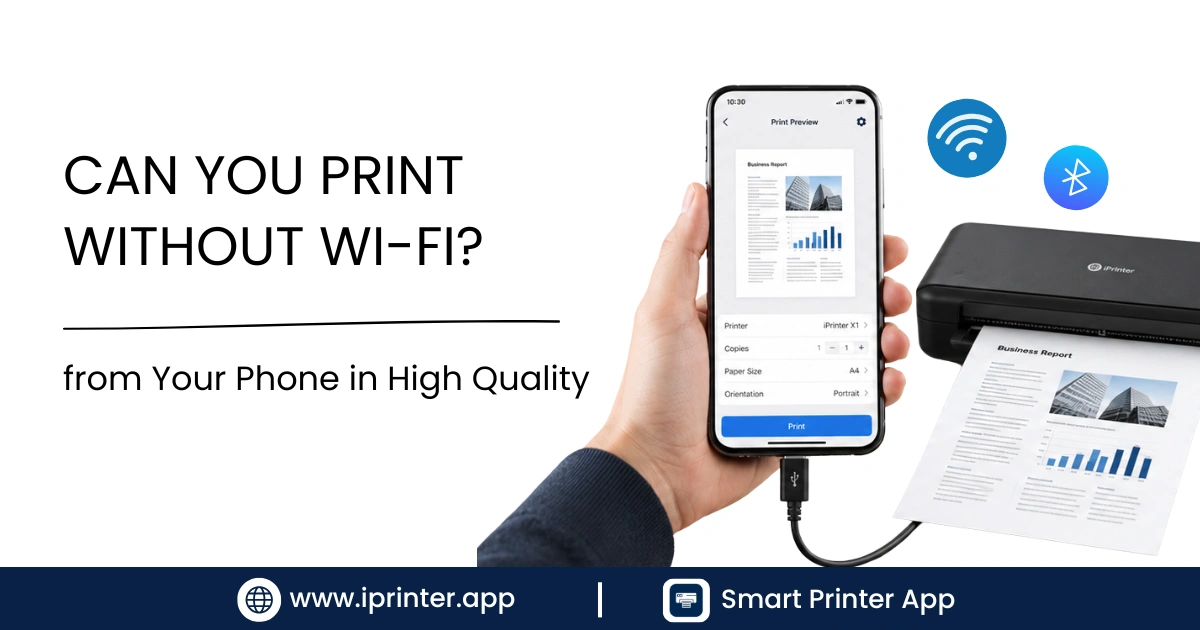
Introduction
You need to print something and the Wi-Fi is down, you're at a location with no network, or your printer just isn't cooperating with your router. The question is simple: can you still print? The answer is yes — and there are several reliable ways to do it, none of which require an internet connection.
This guide breaks down the real difference between "no Wi-Fi" and "no internet," then walks through five practical ways to print from your phone directly to a printer with no network involved. If you're also printing without a computer nearby, our guide to printing from your phone without a computer covers the broader setup.
Wi-Fi vs. Internet for Printing: What's the Actual Difference?
This distinction trips a lot of people up, so it's worth clarifying first. Wi-Fi is just a wireless connection between devices — it doesn't require internet access at all. Internet is the connection that goes out to the wider web through your router's connection to your provider.
Printing over your home network uses Wi-Fi to connect your phone and printer to the same router, but it does not need internet access to work, since the print job travels locally between your phone and printer, not out to the internet and back. That means:
- If your internet is down but your router still works, normal Wi-Fi printing still works fine.
- If you have no router at all, or don't want to use one, you need a method that skips the network entirely — which is what the rest of this guide covers.
5 Ways to Print From Your Phone Without Wi-Fi
1. Wi-Fi Direct Printing
Wi-Fi Direct creates a direct wireless connection between your phone and printer without a router in between at all. Despite the name, it doesn't require an active Wi-Fi network or internet connection — it uses the Wi-Fi radio in both devices to talk to each other directly, a peer-to-peer standard maintained by the Wi-Fi Alliance, the non-profit organization that owns the Wi-Fi trademark and certifies interoperable wireless standards including Wi-Fi Direct.
How to use it:
- On your printer, enable Wi-Fi Direct from its settings menu (usually under Network or Wireless).
- Note the network name and password the printer displays.
- On your phone, go to Wi-Fi settings and connect to that printer's direct network like any other Wi-Fi network.
- Print normally through your phone's Share or Print menu.
This is the closest thing to "print without Wi-Fi" while still getting full wireless convenience, and it works on both iPhone and Android.
2. Bluetooth Printing
Some printers, especially portable and photo printers, support Bluetooth instead of or alongside Wi-Fi. Bluetooth doesn't need a network of any kind.
How to use it:
- Turn on Bluetooth on the printer and put it in pairing mode.
- On your phone, go to Settings > Bluetooth and select the printer to pair.
- Open the manufacturer's app (most Bluetooth printers require their own app rather than the phone's native print dialog) and send your print job.
Bluetooth is best for smaller jobs and portable printers — it's typically slower than Wi-Fi Direct and has a shorter range, but it's dependable when no network is available at all.
3. USB Printing
The most reliable offline method, because there's no wireless connection to trouble-shoot at all.
How to use it:
- Android: Many Android phones support USB printing with an OTG (On-The-Go) adapter cable connecting your phone directly to the printer's USB port. Once connected, most phones automatically detect the printer through the Default Print Service.
- iPhone: iOS does not support direct USB printing from the Photos or Files app in the same way — Apple's ecosystem is built around AirPrint for wireless printing rather than direct USB from iPhone to printer.
USB is a solid backup if you own the right cable, but it's the least flexible option if you print often from your phone.
4. Printer Hotspot Mode
Some printers can broadcast their own Wi-Fi hotspot instead of joining your router's network — useful when there's no router available, like at an event or in a location without installed networking.
How to use it:
- Enable Hotspot or Direct Connect mode on the printer (naming varies by brand — check under Network settings).
- Connect your phone to the printer's broadcast network from your phone's Wi-Fi list.
- Print as normal — your phone treats it like any other Wi-Fi-connected printer, except the "network" is just the printer itself.
This is functionally similar to Wi-Fi Direct but is a distinct feature on some printer models, so check your specific printer's manual for which one it supports.
5. Printing Without Internet on a Home Network
If your Wi-Fi router is working but your internet service is out, you don't need any of the above — your phone and printer can still talk to each other locally. Just print as you normally would through your phone's Share > Print menu; the print job never needs to leave your home network.
Android vs. iPhone: Offline Printing Options
| Method | Works on iPhone | Works on Android | Notes |
|---|---|---|---|
| Wi-Fi Direct | Yes | Yes | Requires printer support; check your model |
| Bluetooth | Limited (printer/app dependent) | Yes (with manufacturer app) | Best for portable printers |
| USB cable | No native support | Yes (with OTG adapter) | Most reliable, least flexible |
| Printer hotspot | Yes | Yes | Works like joining any Wi-Fi network |
| Home network, no internet | Yes (AirPrint) | Yes (Default Print Service) | No special setup needed |
Which Method Is Easiest?
For most people, Wi-Fi Direct is the best balance of convenience and reliability — it works on both iPhone and Android, requires no cables, and most printers made in the last several years support it. USB is the most bulletproof option if you already have the right cable and don't mind being tethered. Bluetooth is great for portable, on-the-go printers but is slower for larger documents. Printer hotspot mode is useful in the same situations as Wi-Fi Direct, though fewer printers support it, so check your model first.
Android Setup Notes
Android's built-in printing relies on the Default Print Service, which — per Google's own support documentation — is managed from Settings, then Connected devices, then Connection preferences, then Printing. It also handles Wi-Fi Direct and hotspot connections the same way it handles regular network printers, since to your phone they all just appear as an available printer once connected. If your printer supports Wi-Fi Direct but doesn't appear, double check that the manufacturer's print service (not just the generic Default Print Service) is installed and enabled — see our guide to printing from an Android phone for more.
iPhone Setup Notes
AirPrint on iPhone works the same way whether you're on a home network, Wi-Fi Direct, or a printer hotspot — Apple's official AirPrint support page notes that AirPrint requires your device and printer to be on the same Wi-Fi network, with no additional drivers or software needed to print. Since Wi-Fi Direct and hotspot mode both effectively create their own "Wi-Fi network" between your phone and printer, AirPrint treats them exactly like a normal network connection — see our guide on printing from iPhone to a printer for the full walkthrough.
Troubleshooting Offline Printing
If a direct connection method isn't working:
- Confirm your printer actually supports the method you're trying — not every printer has Wi-Fi Direct, Bluetooth, and hotspot mode; check your printer's spec sheet or manual.
- Forget and reconnect the direct network on your phone if it was previously paired and is now failing to connect.
- Move closer to the printer — Wi-Fi Direct and Bluetooth both have shorter effective range than a router-based connection.
- Restart both devices if the direct connection was working before and suddenly stopped.
- Update printer firmware through the manufacturer's app, since older firmware sometimes has buggy Wi-Fi Direct implementations.
- Use a printer app if native discovery struggles — apps like iprinter can detect and connect to printers over Wi-Fi Direct more consistently than some phones' built-in print dialogs, particularly on Android devices where manufacturer print services vary in quality. This is a genuinely useful shortcut if you regularly print in places without reliable Wi-Fi, since it removes some of the manual network-switching involved in Wi-Fi Direct setup. See our best mobile printing apps roundup for how it compares to alternatives.
Offline Printing Checklist
Conclusion
Printing without Wi-Fi is more accessible than most people realize — you have four solid offline methods (Wi-Fi Direct, Bluetooth, USB, and printer hotspot mode) alongside the reminder that a working router with no internet still prints just fine. Wi-Fi Direct is the best starting point for most people, since it needs no cables and works on both iPhone and Android. If you print on the go often and want fewer setup steps, iprinter can simplify detecting and connecting to printers over these direct connections.
Need to print somewhere without WiFi? Try iprinter and connect directly to your printer in seconds, no network required.
FAQs
Yes. You can use Wi-Fi Direct, Bluetooth, USB, or a printer's hotspot mode — none of these require an internet connection or even a router.
Wi-Fi is just a wireless connection between your phone and printer; internet is a separate connection to the wider web. Local printing only needs Wi-Fi, not internet.
It's a direct wireless connection between your phone and printer that skips your router entirely, allowing you to print without any network or internet access.
Yes, if your printer supports Bluetooth — this is common on portable and photo printers, usually through the manufacturer's dedicated app.
On Android, yes, with an OTG adapter. On iPhone, direct USB printing isn't natively supported the same way — AirPrint over Wi-Fi is the standard method.
It's a feature on some printers that lets the printer broadcast its own Wi-Fi network, which your phone connects to directly instead of using a home router.
Yes — as long as your phone and printer can connect locally (through Wi-Fi Direct, Bluetooth, USB, or a shared router network), no internet access is required.
Yes, through Wi-Fi Direct or a printer's hotspot mode, since AirPrint treats these the same as a normal Wi-Fi network connection.
Yes, through Wi-Fi Direct, Bluetooth (with a manufacturer app), or USB with an OTG adapter.
Wi-Fi Direct is usually the easiest, since it works like joining a normal Wi-Fi network and is supported on most modern printers and phones.
Check that your printer actually supports Wi-Fi Direct, Bluetooth, or hotspot mode, and that you're within range — these direct connections have shorter range than router-based Wi-Fi.
Not always — many offline methods work with your phone's built-in print dialog, but a dedicated app like iprinter can make detection and setup more consistent, especially on Android.

Need to print somewhere without WiFi?
Try iprinter and connect directly to your printer in seconds, no network required.