Introduction
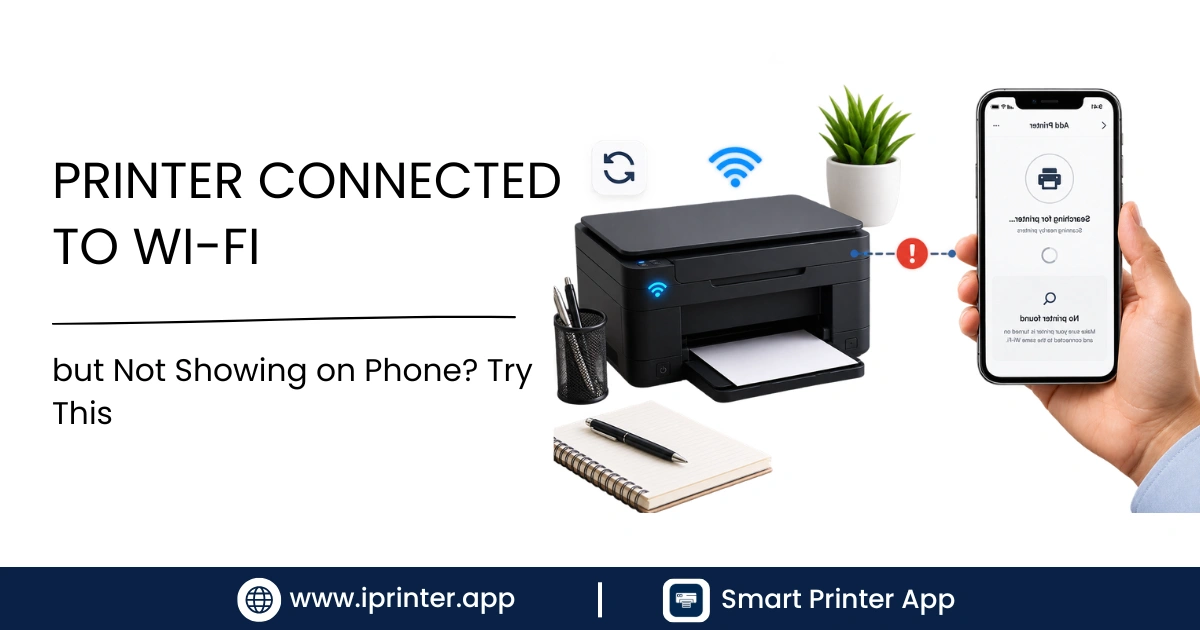
You checked the printer. The Wi-Fi light is on. You even printed a test page from it directly. But when you open an app on your phone and tap "Print," your printer is nowhere in the list. It's one of the most common — and most frustrating — printing problems, because everything looks like it should work.
The good news: this almost always comes down to a handful of predictable causes, and most of them can be fixed in a few minutes without calling support. Below, we'll walk through why this happens and then go through eleven fixes in the order you should actually try them, from fastest to most technical. If you're just getting started with mobile printing in general, our complete guide to printing from your phone covers the basics this article builds on.
Why Your Printer Shows as Connected But Won't Appear on Your Phone
Before jumping into fixes, it helps to understand what's actually going on. Your printer being "connected to Wi-Fi" only means it has an IP address on your router. It doesn't mean your phone can see it. Phones find printers through a discovery protocol called Bonjour/mDNS (used by AirPrint) or Mopria/Android Default Print Service (used by most Android phones). If anything interrupts that discovery broadcast, your printer can be online and reachable, yet completely invisible to your phone.
The most common reasons this discovery fails are:
- Different networks — your printer is on the 2.4GHz band and your phone auto-joined the 5GHz band (or vice versa), so technically you're on two separate networks even though they share the same name.
- Router isolation settings — many routers, especially ones from ISPs or guest networks, have "AP isolation" or "client isolation" turned on, which blocks devices from seeing each other by design.
- A VPN on your phone — VPNs route your traffic away from your local network, which breaks local device discovery.
- Stale network cache — your phone, printer, or router can hold onto an outdated device list until something forces a refresh.
- Disabled print services — Android and iOS both rely on background services (Default Print Service, AirPrint) that can get toggled off during an update.
Once you know it's a discovery problem rather than a "broken printer" problem, the fixes below make a lot more sense.
Quick Checklist Before You Start
Run through this in under two minutes — it solves the issue more often than any single advanced fix:
If all of those check out and it's still not showing, move on to the step-by-step fixes.
Step-by-Step Fixes
1. Confirm the Phone and Printer Use the Same Network
This is the single most common cause. Many home routers broadcast two networks with the same or similar name — one for 2.4GHz and one for 5GHz — and your printer may only support 2.4GHz. If your phone is locked onto the 5GHz band, it won't discover the printer even though both are "connected to Wi-Fi."
How to check: On your printer's control panel, print a network configuration page (usually under Settings > Network > Print Report). Compare the SSID (network name) listed there with the one your phone is currently connected to in Wi-Fi settings. If your router has separate 2.4GHz and 5GHz names, connect your phone to the 2.4GHz network temporarily to test.
2. Restart the Printer
A simple power cycle clears the printer's network cache and forces it to re-announce itself to the router. Turn the printer off, unplug it from power for 30 seconds, then plug it back in and let it fully reconnect to Wi-Fi before testing again.
3. Restart Your Wi-Fi Router
Routers occasionally lose track of which devices are on the network, especially after being on for weeks. Unplug the router, wait 30 seconds, and plug it back in. Give it 2–3 minutes to fully boot and let your printer and phone reconnect automatically.
4. Restart Your Phone
This clears your phone's local network cache and forces its print service to re-scan for available devices. It sounds basic, but it resolves discovery issues surprisingly often, particularly after a phone has been asleep for a long time.
5. Check the Printer's Network Status
Go into the printer's own menu (or its built-in web page via its IP address, entered into a browser) and confirm it actually has a valid IP address and is not showing "connecting" or "limited connectivity." If the printer lost its IP lease, forget the network on the printer and reconnect it from scratch.
6. Disable VPN Temporarily
If you have a VPN app active on your phone — even one you rarely think about — turn it off before printing. VPNs send your traffic through an external server, which prevents your phone from seeing devices on your local network, including printers. Print, then turn the VPN back on afterward if needed.
7. Check Router (AP/Client) Isolation
Client isolation is a router security feature that stops connected devices from communicating with each other, which is great for guest networks but breaks printer discovery entirely. Log into your router's admin panel (usually 192.168.1.1 or 192.168.0.1) and look for "AP Isolation," "Client Isolation," or "Guest Network Isolation," then turn it off for your main network.
8. Check AirPrint (iPhone)
If you're on iPhone, confirm the printer supports AirPrint — not all printers do. According to Apple's official AirPrint support page, your device and printer need to share the same Wi-Fi network with no additional setup required if AirPrint is supported. If your model isn't AirPrint-compatible, you'll need the manufacturer's app or a universal printing app instead — our guide to printing from iPhone to any printer covers both scenarios in more detail.
9. Check Android Print Service
On Android, open Settings > Connected devices > Connection preferences > Printing, and confirm "Default Print Service" (or your printer brand's service, like HP Print Service or Canon Print Service) is switched on. Google's own support documentation confirms this exact settings path, though it can vary slightly by Android version. If it's toggled off, switch it on and re-scan — for a fuller walkthrough, see our guide to printing from an Android phone.
10. Try Wi-Fi Direct
If your router settings are hard to access (common on shared or office networks) or the router itself is the problem, most modern printers support Wi-Fi Direct — a direct phone-to-printer connection that skips the router entirely. Enable Wi-Fi Direct from the printer's menu, then connect your phone to the printer's direct network name from your phone's Wi-Fi list, just like joining any other Wi-Fi network.
11. Use a Printer App
If you've tried the above and your phone still won't reliably detect the printer, a dedicated printer app can help — it scans the network more thoroughly than the built-in system print dialog and often finds printers that AirPrint or Android's Default Print Service miss, especially on printers with inconsistent driver support (see our roundup of the best free printer apps for Android for how these compare). This is genuinely where an app like iprinter simplifies things: instead of relying on the phone's native discovery (which is where most of these failures happen), iprinter actively searches your network for compatible printers and lets you print documents, PDFs, and photos directly once it's found. It's worth trying as a fallback rather than a first step, since most of the time one of the fixes above solves it outright.
Comparison of Fixes: Speed vs. Likely Success
| Fix | Time Needed | Best For | Success Rate |
|---|---|---|---|
| Same network check | 1–2 min | 5GHz/2.4GHz mismatch | Very High |
| Restart printer | 2 min | Stuck network cache | High |
| Restart router | 3–5 min | Router losing device list | High |
| Restart phone | 1 min | Phone-side cache issues | Medium |
| Disable VPN | 30 sec | VPN blocking local discovery | High (if VPN is on) |
| Turn off client isolation | 3–5 min | Router security settings | High (if isolation is on) |
| Check AirPrint/Android service | 2 min | Disabled print service | High |
| Wi-Fi Direct | 2–3 min | Router access is limited | High |
| Printer app (iprinter) | 2 min | Persistent detection failures | High |
Final Troubleshooting Checklist
Use this as a last pass if the printer still isn't showing:
If you've worked through the entire list and it's still not showing, the issue is likely printer-specific hardware or firmware, and it's worth checking your printer manufacturer's support site for a known issue with your exact model.
Conclusion
A printer that's connected to Wi-Fi but invisible to your phone is almost never actually broken — it's a discovery problem, and discovery problems have predictable, fixable causes. Work through the checklist above in order, starting with the network-match check, and you'll likely be printing again within a few minutes. If your phone still won't detect the printer after trying everything, a dedicated app like iprinter is a reliable fallback that can locate and connect to printers your phone's built-in tools miss — see how iprinter works or browse our mobile printing guide for more.
Struggling to get your printer to show up? Try iprinter and print from your phone in seconds — no computer, no guesswork.
FAQs
Usually because your phone and printer aren't actually on the same network band, or something (a VPN, router isolation, or a disabled print service) is blocking local device discovery.
Confirm both devices are on the same Wi-Fi network, disable any VPN, restart both devices, and make sure your phone's print service (AirPrint or Android Default Print Service) is enabled.
Either your printer doesn't support AirPrint, it's on a different network than your iPhone, or a VPN is interfering with local discovery. Check Apple's AirPrint printer compatibility list if you're unsure.
The Default Print Service may be turned off, or the printer's manufacturer print service needs to be installed and enabled from Settings > Connected devices > Printing.
Yes. A VPN reroutes your traffic away from your local network, which prevents your phone from broadcasting or receiving the local discovery signals printers use.
It's a router security feature that stops devices on the same network from seeing each other. It's common on guest networks and, if enabled on your main network, will block printer discovery entirely.
Yes — you can usually connect directly via Wi-Fi Direct, use a manufacturer app, or use a general-purpose printer app that scans more thoroughly than the phone's built-in dialog.
Yes, for standard Wi-Fi printing. If they can't be on the same network, Wi-Fi Direct or USB is a reliable alternative.
Wi-Fi Direct creates a direct connection between your phone and printer without using your router, which sidesteps router-related discovery problems entirely.
Print a network configuration page from the printer's menu, or open the printer's IP address in a browser to view its connection status.
The printer may take a minute to reconnect and get a new IP address. Give it a few minutes, then re-scan from your phone.
Yes — apps like iprinter scan your network more thoroughly than the built-in system print dialog and can detect printers that AirPrint or Android miss.

Struggling to get your printer to show up?
Try iprinter and print from your phone in seconds — no computer, no guesswork.